Online Keyboard Shortcuts
Master every essential keyboard shortcut for Windows, MacOS, and Linux to work faster and eliminate mouse dependency.
AI tool Details
Explore More
Alternatives

About Online Keyboard Shortcuts
Online Keyboard Shortcuts, available at OnlineShortcuts.com, is a comprehensive, no-nonsense reference guide for keyboard shortcuts across the three major operating systems: Windows, macOS, and Linux. The product is a free, ad-free, and spyware-free website that curates the most important and frequently used keyboard shortcuts into a single, easy-to-navigate interface. It is designed for anyone who wants to work faster and more efficiently by reducing their dependency on the mouse. The core value proposition is simple: stop hunting for commands in menus and start executing actions instantly with a key combination. The website covers system-wide shortcuts that work across the entire operating system, operating system-specific shortcuts like those for the Windows key, and application-specific shortcuts for common tools like Command Prompt, File Explorer, and web browsers. It also includes a dedicated section for text editing shortcuts, which are vital for writers, coders, and anyone who works with documents. The content is presented in a clean, minimal format with clear key combinations and descriptions, making it easy to scan and memorize. The product is not a tool or software you install; it is a knowledge base you access. It also offers downloadable cheat sheets in PDF and PNG formats, allowing users to keep their most-used shortcuts offline. The target audience is broad, ranging from beginners who want to learn the basics to power users who need a quick refresher on more advanced shortcuts. The website is fully responsive, ensuring it works seamlessly on mobile devices, tablets, and desktops. The tone of the site is direct, slightly humorous, and focused on delivering value without any fluff or upsells. This is a 100% free resource with a mission to help users master their operating system and applications through the power of keyboard shortcuts.
Features
Cross-Platform Coverage
The website provides a single, unified source for keyboard shortcuts across all three major desktop operating systems: Windows, macOS, and Linux. Instead of searching through separate help files or forums for each OS, users can find the critical shortcuts for their specific system in one place. This is especially valuable for IT professionals, developers, or anyone who regularly switches between different computers and operating systems. The shortcuts are organized by OS, making it simple to toggle between the Windows, Mac, and Linux sections. This feature eliminates the friction of context-switching and ensures that users can quickly find the exact key combination they need, regardless of the platform they are currently using.
Comprehensive and Curated Shortcut Library
Online Keyboard Shortcuts does not attempt to list every possible shortcut. Instead, it focuses on the most important and frequently used commands. The library is organized into logical categories such as system-wide shortcuts, Windows key shortcuts, application-specific shortcuts (e.g., Command Prompt, File Explorer, Web Browsers), and text editing shortcuts. This curation saves users from information overload and ensures they are learning the shortcuts that will have the biggest impact on their daily productivity. Each shortcut is presented with a clear visual representation of the key combination (e.g., Ctrl + C) and a plain-language description of its function (e.g., "Copy selected text"). This clean, minimal presentation makes the information easy to scan and memorize.
Downloadable Cheat Sheets
For users who want to learn and memorize shortcuts offline, the product offers downloadable cheat sheets in three formats: PDF, Dark PNG, and Light PNG. This feature allows users to print a physical reference or set it as a wallpaper on their desktop for constant visual reinforcement. The downloadable versions contain the same curated lists of shortcuts found on the website, ensuring consistency. This is a practical feature for users who prefer to study away from a screen or need a quick reference card to keep at their desk. It transforms the website from a simple online resource into a portable productivity tool.
Responsive and Accessible Design
The website is designed to be fully responsive, meaning it adapts its layout and readability to any screen size, from a large desktop monitor to a small smartphone. This ensures that users can access the shortcut library on the go, whether they are at their desk, in a meeting, or working from a mobile device. The clean, uncluttered interface is optimized for quick scanning, which is the primary action users will take. There are no ads, pop-ups, or distractions. The focus is entirely on the content. This accessibility and user-centric design make it a reliable tool that is always available, regardless of the device being used.
Use Cases
Onboarding New Employees
When a new employee joins a company, especially in roles like software development, data entry, or graphic design, they often need to learn the standard shortcuts for their operating system and core applications. A manager or IT administrator can direct them to Online Keyboard Shortcuts as a single, reliable source of truth. The new hire can quickly learn how to switch between windows, open the task manager, or navigate the file system without a mouse. This reduces the initial productivity dip associated with onboarding and helps the employee become self-sufficient faster. The downloadable cheat sheets can even be printed and placed at their desk as a constant reference.
Troubleshooting Without a Mouse
A common scenario where keyboard shortcuts are invaluable is when a mouse or trackpad stops working. A user might be dealing with a driver issue, a hardware failure, or a frozen graphical interface. In this situation, knowing system-wide shortcuts like Alt + F4 (close window), Ctrl + Shift + Esc (open Task Manager), and Win + D (show desktop) can be the difference between fixing the problem quickly and having to force a restart. Online Keyboard Shortcuts provides a ready reference for these critical "panic button" shortcuts, empowering users to navigate and troubleshoot their computer entirely from the keyboard.
Boosting Developer and Writer Productivity
For professionals who spend hours typing, such as software developers and content writers, every second counts. Learning text editing shortcuts (Ctrl + A, Ctrl + Z, Ctrl + Y) and browser shortcuts (Ctrl + T, Ctrl + W, Ctrl + Shift + T) can dramatically reduce the time spent on repetitive tasks. A developer can use the site to memorize shortcuts for their IDE or command prompt, while a writer can master the shortcuts for formatting and navigation. The curated list of text editing shortcuts on the website is a direct resource for these users to level up their workflow and reduce hand strain from constant mouse use.
Learning a New Operating System
When a user switches from Windows to macOS, or vice versa, one of the biggest challenges is adapting to the different keyboard layouts and modifier keys. For example, the Ctrl key on Windows is often replaced by the Command key on Mac. Online Keyboard Shortcuts provides a side-by-side reference that helps users map these differences. A new Mac user can look up the macOS section to find the equivalent shortcuts for common Windows actions. This use case is critical for reducing frustration and accelerating the learning curve when transitioning to a new platform, whether for a new job or a personal upgrade.
Frequently Asked Questions
What is Computer Keyboard Shortcuts?
Computer Keyboard Shortcuts is a comprehensive guide to keyboard shortcuts for a wide variety of software applications. It is designed to help users improve their productivity by providing quick and easy access to commonly used commands and hotkeys.
How do I use Computer Keyboard Shortcuts?
Browse the list of shortcuts and find the one you need. You will figure it out. The site is designed for immediate, intuitive use. Simply select your operating system (Windows, MacOS, or Linux) and scan the categorized lists for the action you want to perform.
Can I request a new software to be added?
Yes, users are encouraged to request new software. You can do that by thinking of a keyboard shortcut really hard and we will mentally receive your message.
Are the shortcuts updated regularly?
No. Maybe. Let us see. The shortcuts are curated to be as accurate as possible for the specified software versions. However, software updates can sometimes change hotkeys, so it is always good practice to verify with the specific version you are running.
Is there a mobile version of the site?
The website is designed to be accessible and responsive, allowing you to view cheatsheets on mobile devices, tablets, and desktops. The layout automatically adjusts to fit your screen size for easy reading.
How accurate are the keyboard shortcuts?
The shortcuts are curated to be as accurate as possible for the specified software versions. However, software updates can sometimes change hotkeys, so it is always good practice to verify with the specific version you are running.
What is the official website for Computer Keyboard Shortcuts?
The official website is OnlineShortCuts.com. You are on it.
Similar to Online Keyboard Shortcuts

What's on the menu
Smart translate any restaurant menu
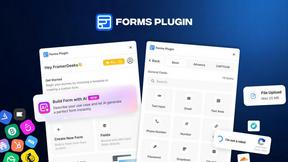
Forms Plugin
The #1 Native Form Builder Plugin for Framer - No Code, No Embeds, No External Platforms.

HomeAnswerBook
Practical, independent guides to home repairs, maintenance, costs, troubleshooting, and everyday fixes.
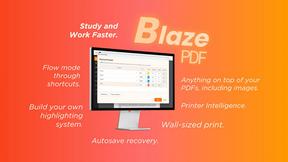
BlazePDF
Highlight faster. Study in flow with custom shortcuts and a workflow built around you. Print smarter, or turn any page into a tiled poster.

Build Mode for Mac
Build Mode is a Mac app that turns focused sessions into visible progress, so you can see the work adding up before the results arrive.


GROWNX
Real-time downloads, revenue, and reviews across your App Store portfolio, plus an AI copilot.